How to Identify a LEGO® Piece You Can't Place
When I first built Gybio, I scanned every single brick with the camera, one at a time. It worked. It was also never going to end, because you are pointing a phone at every piece in the box.
So this guide is not camera first. The fastest way to identify a LEGO® piece is usually not to need to. Sort the pile by colour and by what your sets need most, and the bulk of it goes home in handfuls. The camera is for the ones that are left. The oddball, the part you have never seen, the big piece you are not sure about. You photograph one of those, and Gybio tells you which of your own sets it belongs to, in which colour, and how many that set still needs.
Why some pieces will not place
Most pieces place themselves once you are sorting by colour and shape. A red 2x4 brick is obvious. The trouble is the awkward minority, and there are three usual reasons a piece stops you.
First, similar shapes. Slopes, wedges and curved pieces come in families that look almost the same until you hold two of them side by side.
Second, the greys. Two LEGO® colours, Light Bluish Gray and Dark Bluish Gray, are genuinely hard to tell apart under a kitchen light. Brickset's colour records catalogue over 3,400 parts in Light Bluish Gray and over 2,800 in Dark Bluish Gray, so this is not a rare edge case. I will come back to what to do about it.
Third, parts that live in several of your sets at once. A common plate can be needed by five of your sets, so the question "what set is this" has more than one right answer, and you want to see all of them, not just the first. Those three are what brick identification is really for.
How to identify a LEGO piece with the camera
Here is the actual job, once you are holding a piece you cannot place.
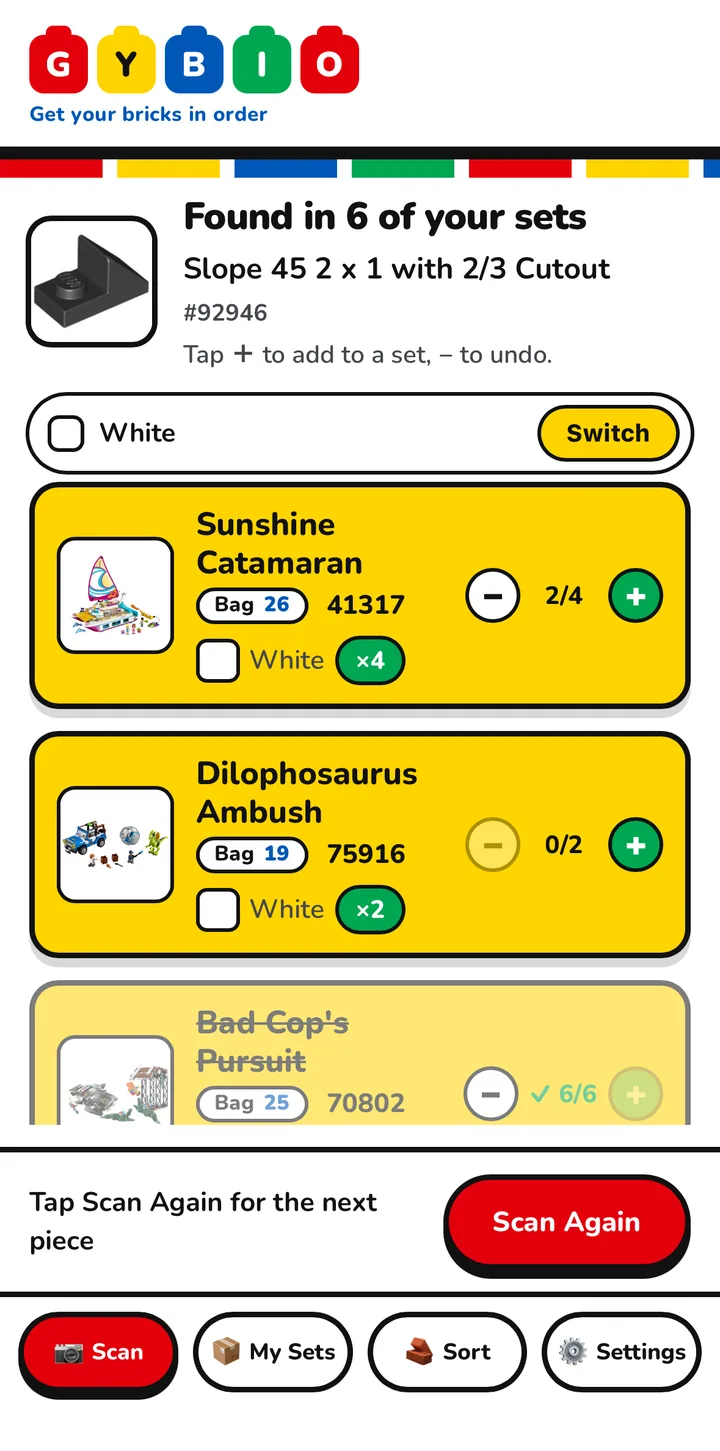
Open the Scan tab and hold your phone's rear camera over the piece. Tap Capture Now. Gybio sends the photo to Brickognize, the recognition engine it uses to name a part, then does its own job on top. It matches the part against the sets you have added and heads the result with the part and how many of your sets need it, "Found in 6 of your sets", then lists them, each with the right colour and the number still to find.
Under that sits the colour Gybio has picked, with a Switch button beside it. Tap Switch and it opens a picker headed "This brick is...", listing the other colours you own that piece in, and you tap the right one. The guess is not always right, on the two greys especially, but correcting it takes a second because the colours you might mean are already in front of you, and you can switch again later if you change your mind.
To put the piece away, tap the plus next to the set you are filling. The "left to find" count for that set drops by one. Then tap Scan Again for the next piece. That is the whole loop, and you settle into it quickly.
How to take a photo it can read
Recognition is only as good as the photo you give it, so a few seconds of setup pays off.
Put the piece on a plain, light surface. A sheet of white paper is ideal. A busy or coloured background makes the colour harder to read, the greys worst of all.
Leave a little space around the piece. Do not fill the frame. One piece at a time, not a handful, because a photo of several bricks at once is a harder job and a worse answer.
Good light helps, and even light helps more. A single hard lamp throwing a shadow is harder than soft daylight. For a dim room, the scanner has a button with a small torch icon, labelled Light, to steady the lighting.
When it cannot identify a piece
It will not always get there, and an app that pretends otherwise is not worth trusting. Recognition is very good, but never perfect. Lighting, a scuffed part, or two near-identical moulds can all trip it.
If it does not recognise the piece, take the photo again, better lit and on a plainer background. That fixes most misses.
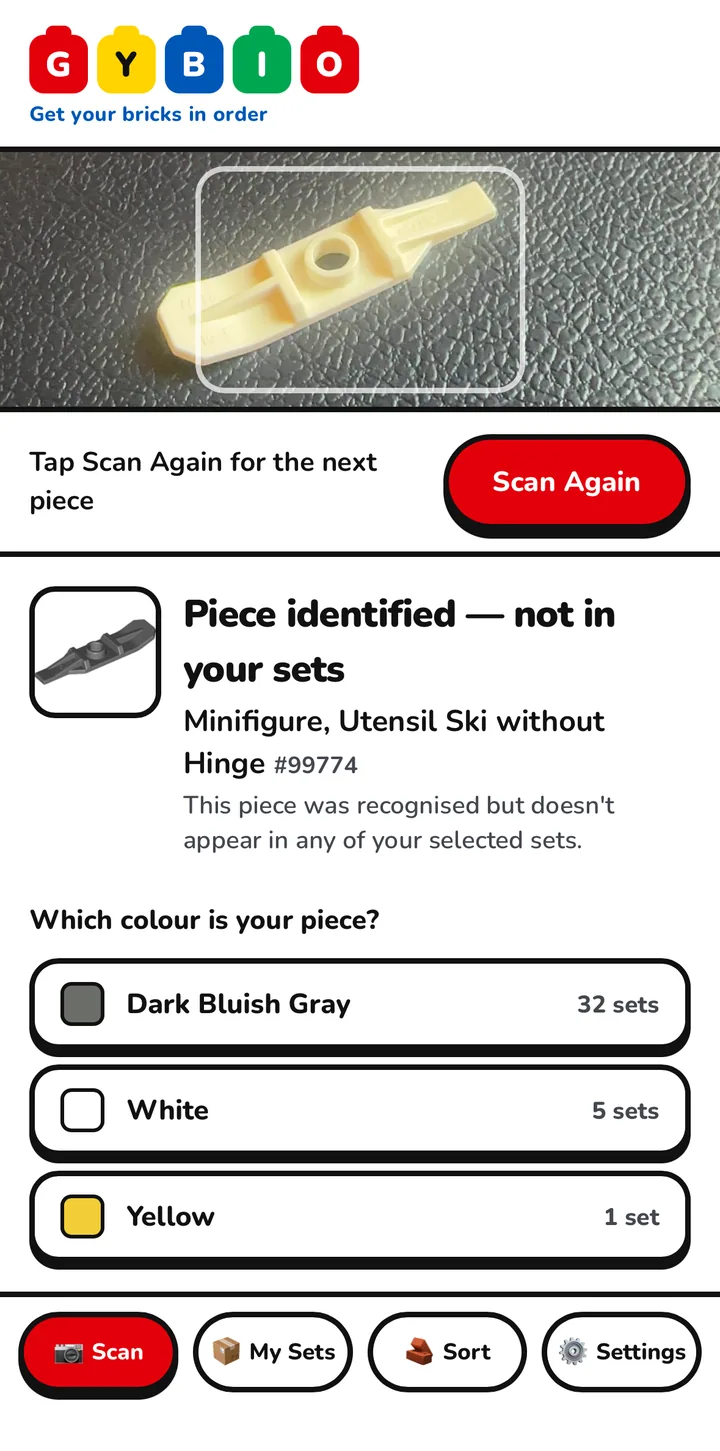
If it recognises the piece but cannot place it with you, that can be the honest answer. Gybio tells you it has identified the piece but it is not in any of your sets. The piece may be from a set you have not added, or from one that was never yours. If you want to chase it further than Gybio can, Rebrickable's part catalogue lets you look the part up by number and see every set it appears in. Under it is a red button, "Find which sets use this piece". Tap that and it asks "Which colour is your piece?", listing each colour with the number of sets that use it. Pick one and you get those sets, with an Add button on each. One honest note though. A plain 2x4 brick turns up in so many sets that this narrows nothing down. Distinctive parts are the ones it helps with.
And if you were hoping to hold the camera over a whole tub and have it sorted in one go, that is not this. Gybio reads one piece at a time. The pile still needs sorting by hand, which is the faster route anyway.
Where the camera fits in the rebuild
So the camera is one tool, not the whole app, and it is most useful last.
Sort first. Work colour by colour, and within a colour go after the pieces your sets need most. The Sort tab opens a screen headed Sort by part, which filters across all your kits by Colour and Shape, and opening a set in the My Sets tab gives you the same two filters inside that one kit. That is how you pick off every piece of one colour against your sets. There is a fuller method in the guide to sorting a loose pile of bricks.
Use the camera for the leftovers. The pieces sorting could not place, which were the whole point of this page.
Tick off as you go. Every piece you allocate moves a set closer to complete, and Gybio keeps the running count of what each set is still missing. That is the same loop as putting a whole set back together, covered in the guide to rebuilding a mixed up set.
FAQ
What set is this piece from?
Photograph the piece in Gybio and it tells you which of your own sets need it, in which colour and how many. If it belongs to a set you have not added, Gybio can look up which sets in the catalogue use the part instead, so you can see where it came from.
How do I identify a LEGO part?
Sort the pile by colour and shape first, which places most parts against your sets with no camera at all. For the ones you cannot place, open the Scan tab, hold the camera over the piece and capture it, and Gybio identifies the part and matches it to your sets.
Is there a LEGO part identifier that works with the sets I own?
That is the specific job Gybio does. Most tools name a part in the abstract. Gybio names it and then tells you which of your own sets it belongs to, which is the question you actually have when you are rebuilding.
Why can't the app identify my piece?
Usually the photo. Try a plainer, lighter background and better light, with one piece in the frame. Recognition is very good but not perfect, so a scuffed or unusual part can still miss.
Can it tell Light Bluish Gray from Dark Bluish Gray?
Not with certainty from a photo, and it does not pretend to. The two greys are genuinely hard to separate. Gybio shows its best guess with a Switch button beside it, and tapping Switch lists the other colours your sets use for that part, so if it picks the wrong grey you tap the right one.
The short version, then. Sort what you can, photograph what you cannot, and let each piece find its set. The camera is there for the handful that sorting leaves behind, not for the whole pile.
Gybio identifies a loose piece and tells you which of your own sets it belongs to. Free for up to three sets and it runs in your browser, with no app store. Gybio Pro is £3.99 a month, or £39.99 a year, for unlimited sets.